

Artificial Intelligence Providers
Important
The controls explained in this section are available to RadiusCore Administrators only.
RadiusCore includes AI integration capabilities that allow users to perform analysis on transactional, financial, and tax-related data, within RadiusCore Workpapers, using supported AI providers. The AI integration is designed to securely connect RadiusCore with external AI services while giving administrators control over provider selection, credentials, and user access.
Prerequisites
Before you can configure an AI provider in RadiusCore, you need to ensure you have an active subscription with your chosen AI provider. See below for instructions for supported AI providers.
- Visit the Azure portal in your browser and sign in.
Tip
Tip: You may want to sign in and setup this resource with your Micrsoft365 tenancy's administrator account. Contact your IT provider for further advice.
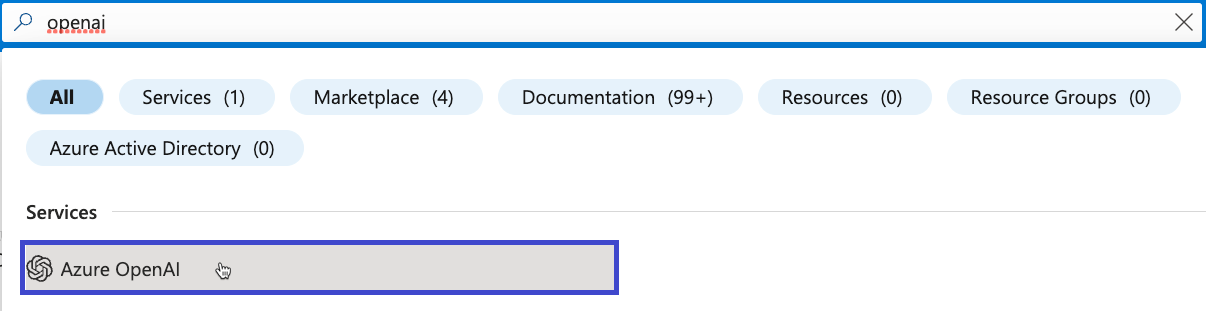
- Enter openai in the serach bar at the top of the portal page and select Azure OpenAI from the options that appear.
- Select Create in the toolbar.
- Perform the following tasks:
- Select your Azure subscription.
- Select the resource group to use (create a new one if needed).
- Select the region you would like your AI model to be hosted.
Note
RadiusCore recommends Australia East (Sydney) where available. If the desired model is not available in that region, select another Australian Azure region that supports the model deployment.
- Enter the resource name. It must be a unique value.
Note
RadiusCore recommends including an indication that this resource is for RadiusCore in the name. For example, Radius-OpenAI.
- Select the Standard S0 pricing tier.
- Select Next until you get to the Review + submit screen. Select Create.
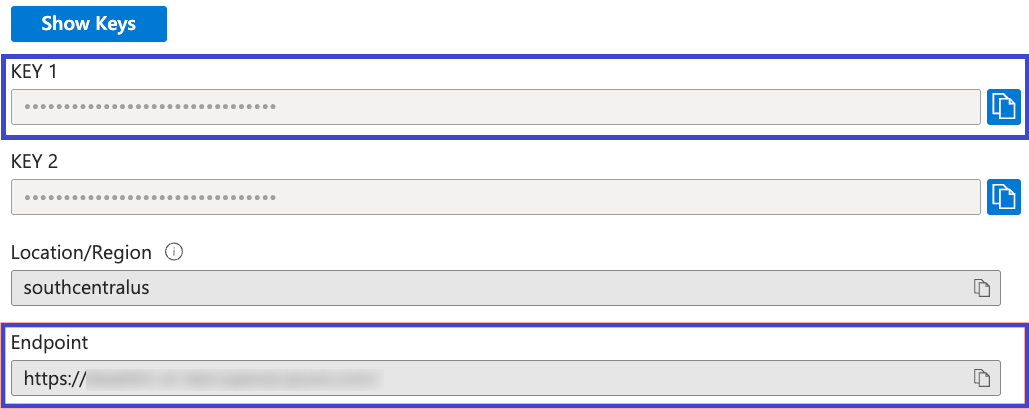
- Once your Azure OpenAI resource is created, navigate to it and select Resource Management ➔ Keys and Endpoint.
- Locate the KEY 1 and Endpoint values.
Important
You'll use both values in the next section so copy them to a temporary local file or password manager.
- Select Overview ➔ Go to Foundry portal to go to Azure OpenAI Studio.
- Toggle New Foundry OFF.

- Select Deployments under Shared resources on the left-hand sidebar ➔ Deploy model.
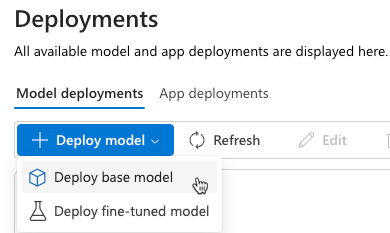
- Select the appropriate AI model from the list of models and select Confirm.
Note
Azure OpenAI supports several different types of models.
RadiusCore Recommendation: See the table below for RadiusCore's recommended models, with commentary around cost, performance, and analytical capability.
| Model | Deployment | Description |
|---|---|---|
| GPT-5.4 mini | Immediate | Recommended for most firms. Fast, low-cost model well suited to routine accounting analysis, transaction review, and tax preparation tasks. |
| GPT-5.4 | Immediate | Recommended for firms requiring more detailed financial analysis and stronger reasoning. Suitable for complex year-end reviews and client reporting. |
| GPT-5.6 Sol | Quota Request | Recommended for firms wanting the latest reasoning capability and analysis. New subscriptions may need to submit a manual quota request (see step 13 below) before this model can be deployed. |
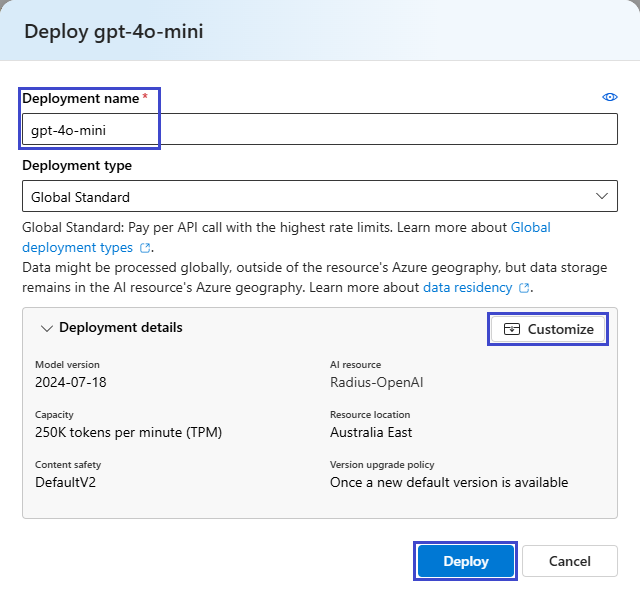
- The following dialog will display. Take a moment to examine the default values that are provided, selecting Customize for additional options.
Important
Take note of the Deployment name, copying it to a temporary local file or password manager as you will use it in the next section.
-
Select Deploy.
Important
Unable to Deploy a Model?
If model deployment fails due to insufficient quota, verify that quota has been assigned to your Azure subscription for the selected model and region.
New Azure OpenAI subscriptions may have limited or no quota available for certain models. Additional quota can be requested through the Azure Portal or Microsoft quota request process. Refer to Microsoft's Azure OpenAI quota documentation for the latest instructions. -
Configuration complete! Proceed to Configuration Settings to configure your AI provider in RadiusCore.
Configuration Settings
To configure a subscription's AI Providers, select Configure AI Providers from the Administrator Dashboard.
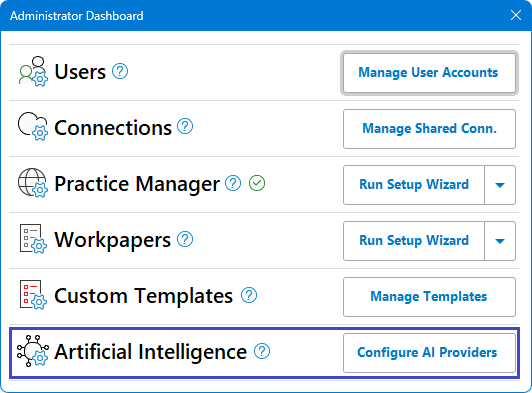
AI Credentials
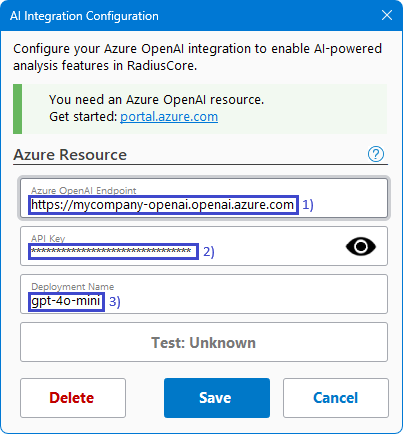
Enter the AI credentials obtained from your AI provider per Prerequisites. RadiusCore uses these settings to connect to your AI service and enable AI-powered analysis features. The following fields are required:
| # | Item | Detail |
|---|---|---|
| 1 | Endpoint | The provider's API endpoint. |
| 2 | API Key | A unique authentication key used to connect RadiusCore to the AI service. |
| 3 | Deployment Name | Specifies which AI model RadiusCore should use. |
Test Credentials
Note
Credentials must pass validation before RadiusCore can use the configured AI provider.
Select Test: Unknown to validate whether the provided credentials can be used to access your AI resource.
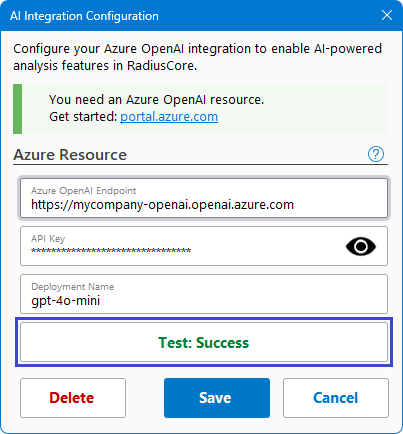
If the connection is successful, the status changes to Test: Success. You can then save the configuration and begin using AI-powered features within RadiusCore.
Test Results
The test result indicates whether RadiusCore was able to successfully connect to and validate the configured AI resource.
| Status | Description |
|---|---|
| Test: Success | RadiusCore successfully connected to the AI resource and validated the supplied credentials. |
| Test: Failed | One or more configuration settings could not be validated. Review the error message and the troubleshooting guidance above. |
| Test: Unknown | Credentials have not yet been tested, or changes have been made since the last validation. |
Troubleshooting Failed Tests
If validation is unsuccessful, use the following table to identify common errors and the steps required to resolve them before testing again.
| Credential | Likely Errors | Potential Resolution |
|---|---|---|
| Network Connectivity | • Unable to connect to AI resource • Request timed out • Service unavailable |
• Confirm internet connectivity is available. • Check any firewall, proxy, or network restrictions that may block access to the AI service. • Try testing again after verifying network access. |
| Endpoint | • No such host is known • DNS resolution failed • Connection timeout • Invalid endpoint URL |
• Ensure the AI resource endpoint has been entered correctly. • Verify that the endpoint includes the full HTTPS address. • Confirm the AI resource exists and is accessible from your network. • Check for spelling mistakes or missing characters. |
| API Key | • Authentication failed • Unauthorized (401) • Invalid API key • Access denied |
• Verify that the API key has been entered correctly. • Ensure there are no leading or trailing spaces. • Confirm the API key is active and has not been regenerated or revoked. • Generate a new API key and update the configuration if necessary. |
| Deployment Name | • Deployment not found • Model unavailable • Resource does not contain the specified deployment |
• Verify the deployment name exactly matches the deployment configured in your AI provider. • Check for case sensitivity or spelling mistakes. • Confirm the deployment has been successfully created and is available for use. |
| AI Resource | • Resource not found • Resource unavailable • Service temporarily unavailable |
• Verify the AI resource is active and running. • Ensure the correct resource endpoint is being used. • Check the AI provider's service status for any outages. |