

Tax Authorities
Important
The controls explained in this section are available to RadiusCore Administrators only.
RadiusCore includes tax authority capabilities that allow tax office reports to be created directly in Excel using live data.
- Access the Administrator Dashboard and select Configure Tax Authorities.
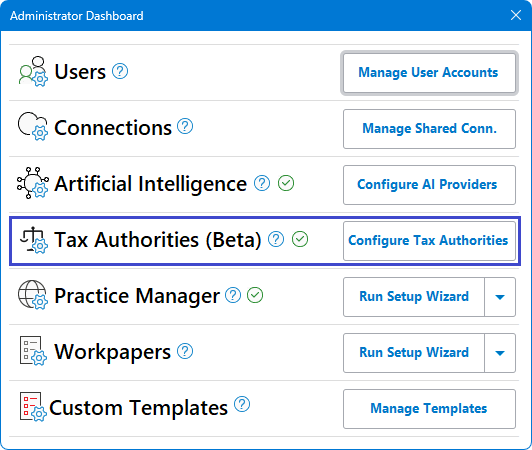
- On the tax authority dashboard, you can see all of the configured Tax Authorities that RadiusCore can access. Select Add Tax Authority to add a new tax authority for RadiusCore to access.
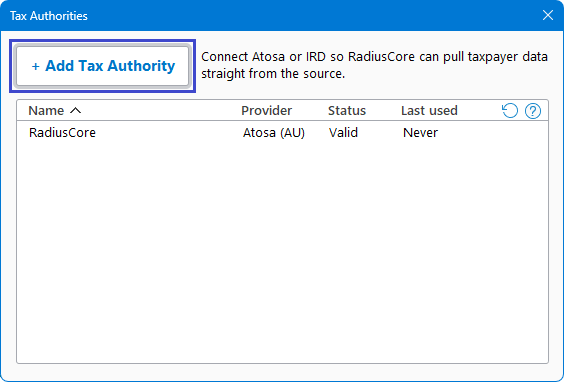
- Configure your new tax authority for the appropriate tax office.
Australian Tax Office (Australia)
Note
RadiusCore uses Atosa, a third-party integration provider to access ATO data.
Atosa Credentials
-
Visit the Atosa in your browser and either sign up for a trial or sign in to your existing subscription.
-
Navigate to Tax Agent Management -> Manage Integrations then select Add Integration.
Tip
Tip: If your organisation has multiple TANs, an integration needs to be created for each TAN.

-
Perform the following tasks:
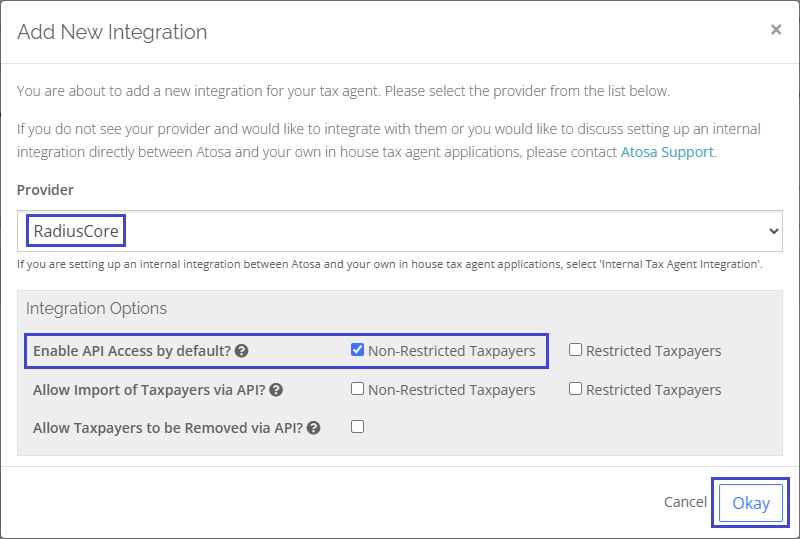
- Select RadiusCore from the provider dropdown.
- Select Non-Restricted Taxpayers for default API access. This can be set to include restricted Taxpayers, however RadiusCore recommends starting with non-restricted until you understand what information is exposed via your RadiusCore subscription.
- Select Okay to add the RadiusCore integration to your Atosa subscription.
-
On the integration management table, select the + symbol to generate a new API key.

Important
You'll need the API Key and Label next section so copy them to a temporary local file or password manager.
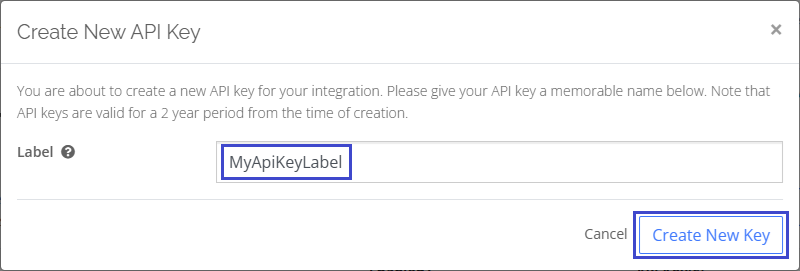
- Enter a Label for the key- this is a plain-text identifier for the API key.
- Select Create New Key to generate your API key.
- Store the generated key in a secure location, it is sensitive information.
-
To enable access for existing taxpayers, select the person symbol on the integration management table.

- Select Enable API Access for all taxpayers.
- If you have any restricted taxpayers, manually disable API access for these.
Atosa Configuration
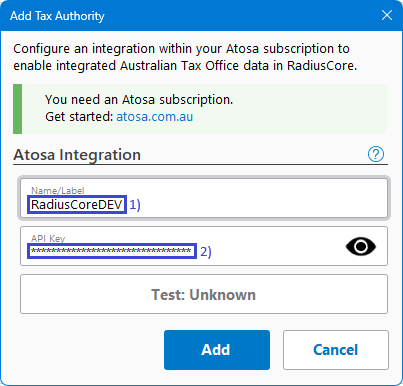
Enter the API credentials obtained from Atosa.
| # | Item | Detail |
|---|---|---|
| 1 | Label | The plan-text identifier provided when creating your Atosa API key. |
| 2 | API Key | A unique authentication key used to connect RadiusCore to Atosa. |
Atosa Test
Note
Credentials must pass validation before RadiusCore can use a new Atosa tax authority.
Select Test: Unknown to validate whether the provided credentials can be used to access your Atosa subscription.
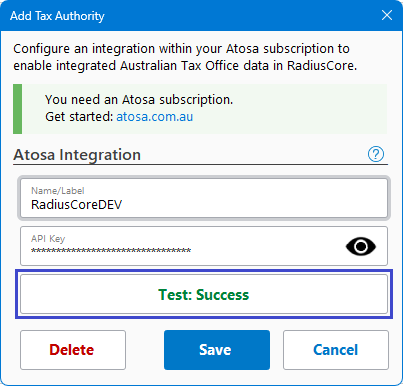
If the connection is successful, the status changes to Test: Success. You can then save the configuration and begin using AI-powered features within RadiusCore.
Test Results
The test result indicates whether RadiusCore was able to successfully connect to and validate the configured Atosa subscription.
| Status | Description |
|---|---|
| Test: Success | RadiusCore successfully connected to Atosa and validated the supplied credentials. |
| Test: Failed | One or more configuration settings could not be validated. |
| Test: Unknown | Credentials have not yet been tested, or changes have been made since the last validation. |
Inland Revenue Department (New Zealand)
Coming Soon!